Admin User Interface
Processes
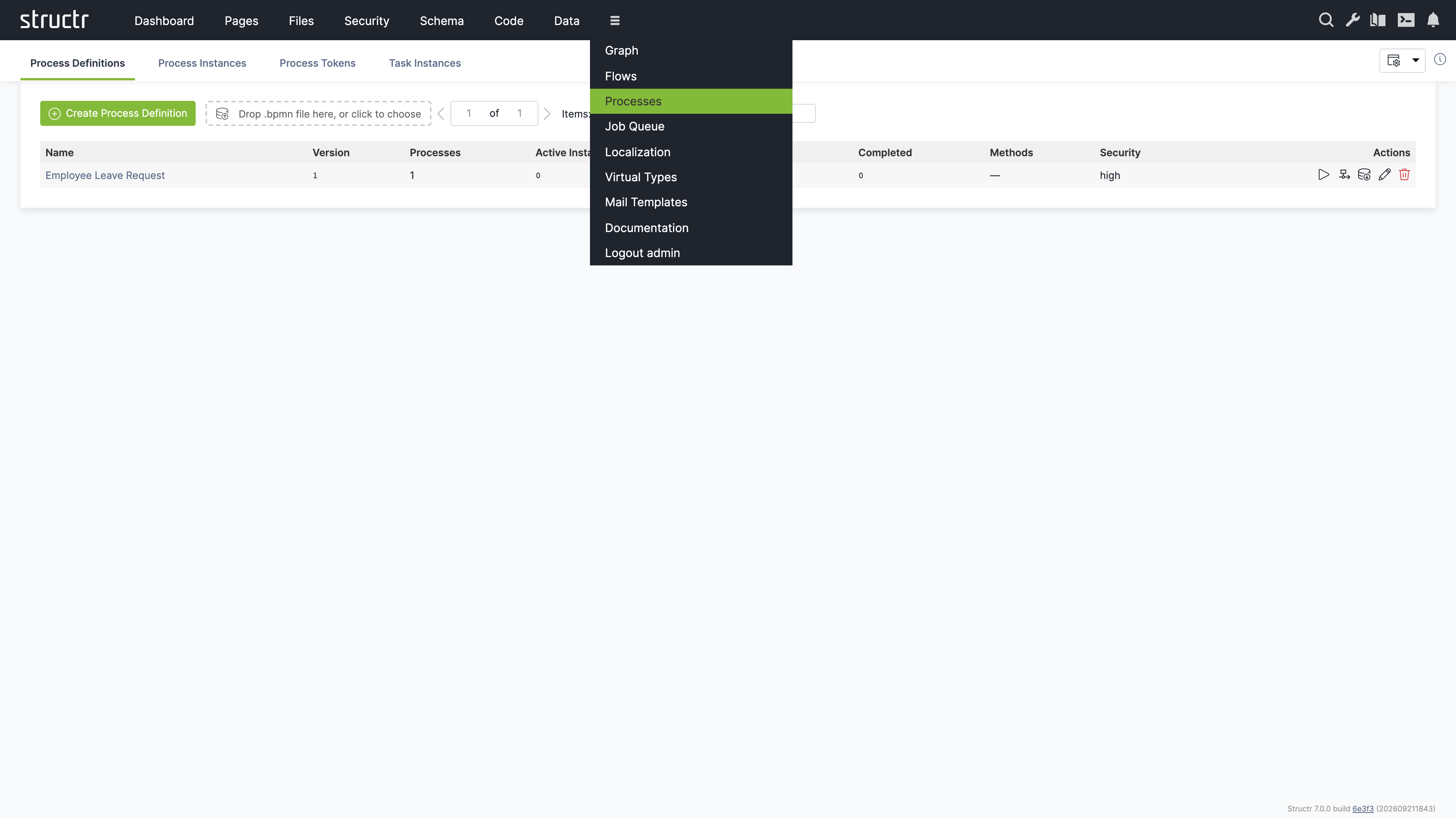
The Processes area is where you model BPMN processes and watch them run. It contains the BPMN diagram editor, the list of process definitions, and monitoring views for running instances, their tokens and the tasks that wait for users. The area belongs to the process module and appears in the extended menu behind the burger icon when the module is installed.
The area has four tabs. Process Definitions holds the models. Process Instances, Process Tokens and Task Instances show what the engine is doing at runtime. Wiring a process to pages happens in the Pages area and is described in the BPMN Process Control chapter.
Process Definitions
A process definition is a BPMN file: it holds one or more processes, their diagram, and the Structr-specific settings that the BPMN standard does not carry. The table lists every definition with its version, the number of processes it contains, the number of active, suspended and completed instances across those processes, and its security level.
Creating and Importing Definitions
Click “Create Process Definition” to create an empty definition with one process and a blank diagram. The editor opens immediately. The definition receives a generated name that you can change later via its properties.
To import an existing model, drop a .bpmn or .xml file onto the dropzone next to the button, or click the dropzone to choose files. Structr reads BPMN 2.0 XML and creates the process graph from it. Files exported by Camunda 7, Camunda 8 and Zeebe, and Flowable or Activiti are recognized, and the form definitions these tools attach to user tasks are translated: Structr synthesizes a subject type from the union of all form fields, creates one view per task with that task’s fields, and sets it as the form view of the step, so that the process can be used with process-bound widgets right away. Importing a file whose process id already exists creates a new version of that process instead of overwriting it. See Versions below.
Actions
Each row offers five actions. The play icon starts an instance of the first process in the file, which is useful for testing a model without a page. The diagram icon and the name of the definition open the BPMN editor. The export icon downloads the definition as a .bpmn file. The pencil icon opens the properties dialog, where you rename the definition and set its security level. The trash icon deletes the definition.
Security Level
The security level of a definition is high by default. Users then interact with tasks through the pages of your application while logged in. The level low additionally allows sessionless access to a task through a signed link, which the processToken and processNotify functions create. This is intended for processes whose participants do not have an account, for example an approval sent by email. Set it only for processes that are designed for this kind of access.
Versions
Every process carries a version number. Running instances keep executing the version they were started on, so you can change a model while older instances finish on the old one. Importing a file with a known process id creates the next version and copies the handler methods of the previous version onto it. Pickers in the Pages area show the version next to the process name, for example “Request Process (v2)”, so you can bind a page element to a specific version.
The BPMN Editor
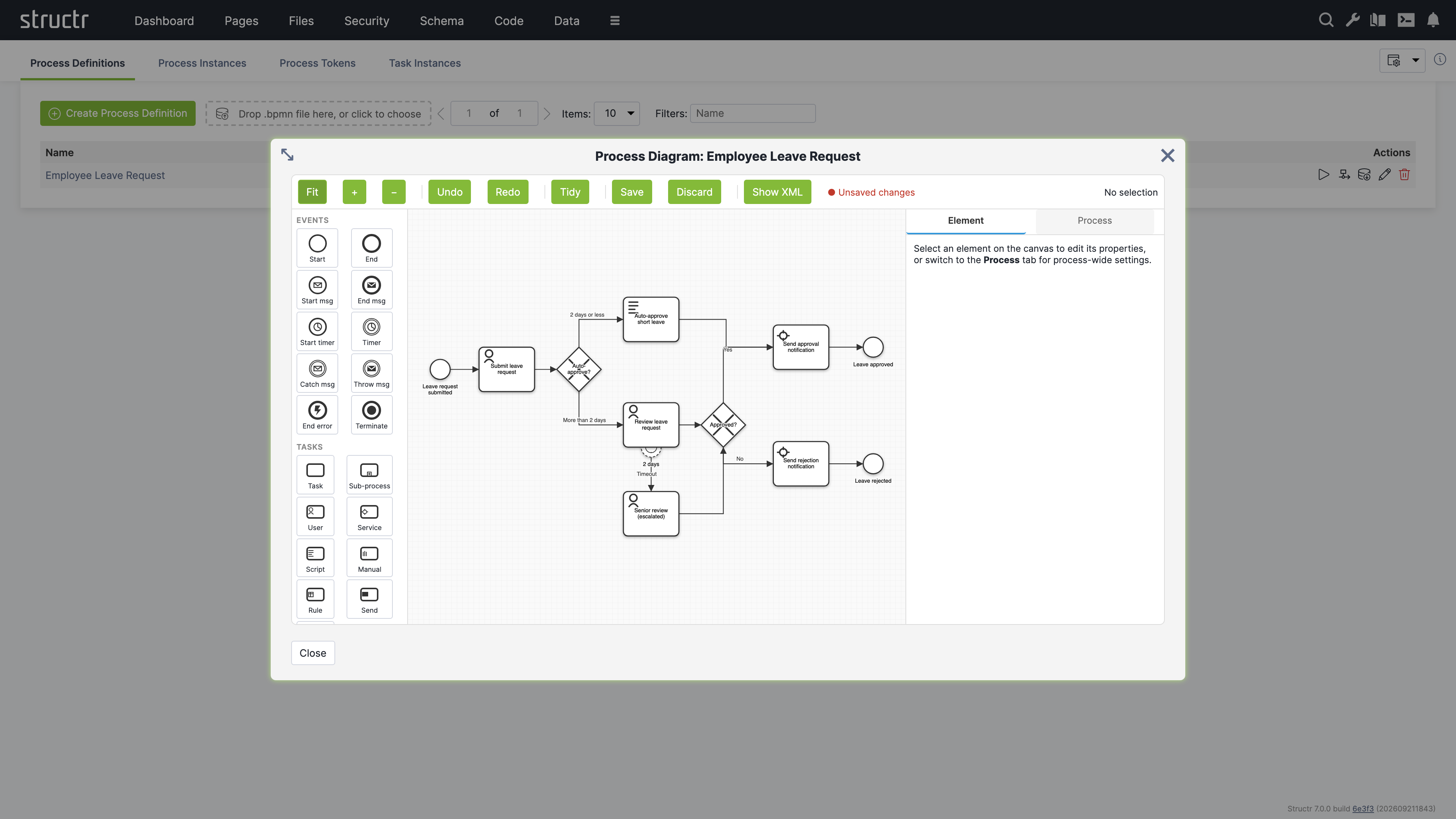
The editor opens as a full-size dialog with a toolbar at the top, the palette on the left, the canvas in the middle and a side panel on the right.
Toolbar
Fit, plus and minus control the zoom. Undo and Redo step through your changes. Tidy snaps all shapes to the grid and moves lanes inside their pools. Save writes all pending changes in one transaction, Discard drops them. Both are disabled while nothing has changed, and the label next to them tells you when the diagram has unsaved edits. Show XML opens a read-only preview of the BPMN XML including your pending edits, with a Copy button.
Palette and Canvas
The palette is grouped into Events, Tasks, Gateways, Boundaries and Data. Events cover start and end events, message and timer start events, intermediate timer, message catch and message throw events, error end events and terminate events. Tasks cover the generic task, sub-process, user, service, script, manual, business rule, send and receive tasks. Gateways cover exclusive, parallel, inclusive, event-based and complex gateways. Boundaries attach timer, message, error, escalation and signal events to a task. Data covers data objects and data stores.
Click a palette entry, then click on the canvas to place the element. To connect two elements, select the source and drag from the plus handle at its edge onto the target. Selecting an element on the canvas switches the side panel to its properties.
The Element Tab
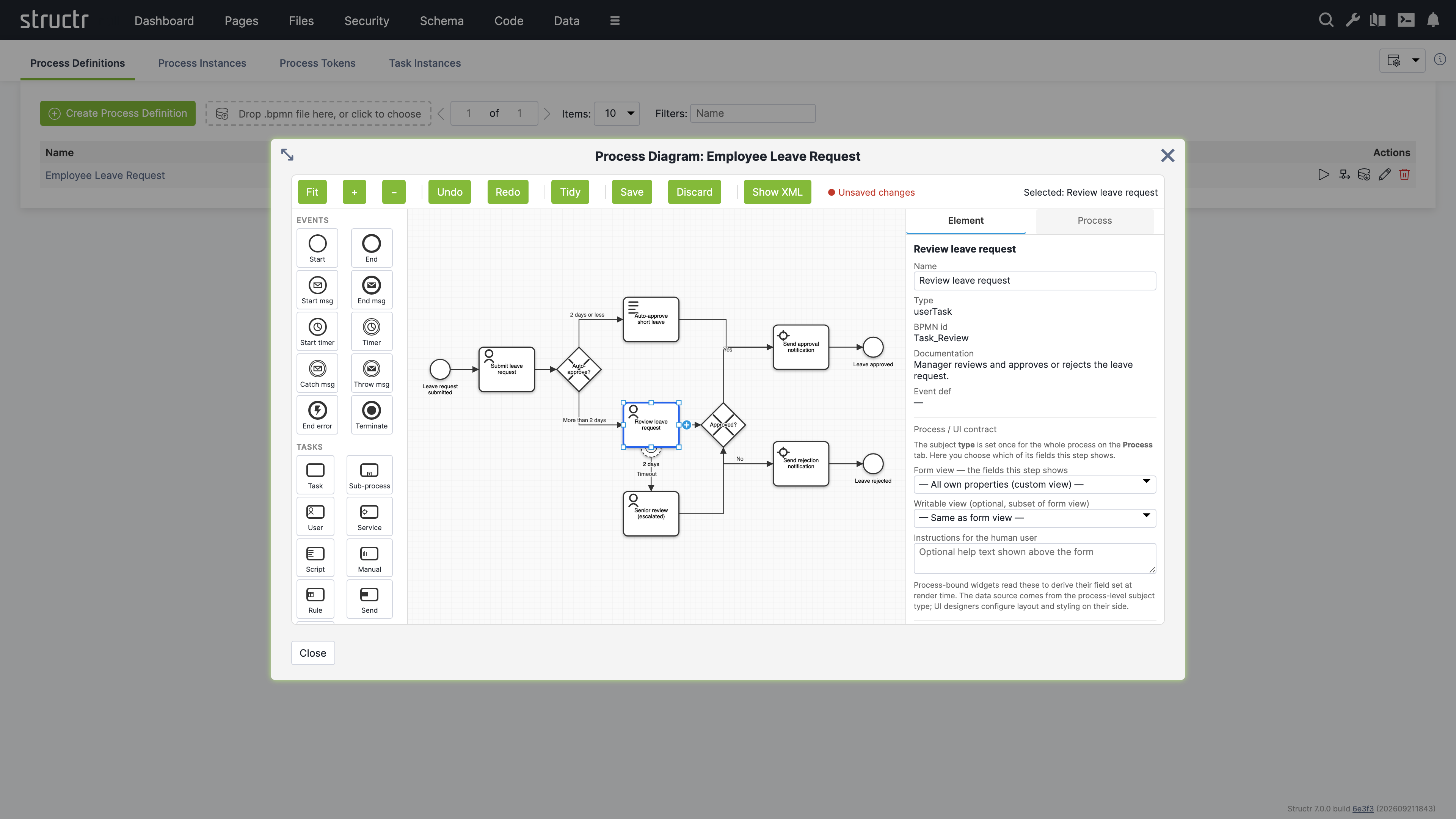
The Element tab of the side panel shows the properties of the selected element. Every element has a name. Sequence flows and other attributes that the panel does not expose as fields are available in the BPMN attributes editor at the bottom, a list of key and value pairs that round-trips to the XML attributes of the element. This is where you set a gateway’s default flow or a script task’s script format without editing the XML.
User tasks have the most settings, because they are the steps where people interact with the process:
| Setting | Description |
|---|---|
| Assignee (humanPerformer) | An expression that names the user who receives the task, for example ${initiator} for the user who started the instance, or user(alice). |
| Candidates expression (potentialOwner) | An expression that names the users or groups who may claim the task, for example user(alice), group(managers). |
| Candidate principals | The users and groups resolved from the candidates expression, for reference. |
| Form view | The view of the subject type whose fields this step shows. The subject type itself is set on the Process tab. |
| Writable view | An optional subset of the form view that this step may change. |
| Instructions for the human user | Help text shown above the form of a process-bound widget. |
Below these settings, the panel lists the task event handlers. A handler is a schema method that the engine runs when the task fires one of the events created, assigned, claimed, available, declined, completed or cancelled. Click “Add handler”, choose the event and the phase, and Structr creates a method named after the task, the phase and the event, which you open in the Code area with the edit button. The phase on runs before the transition is committed and can veto it by throwing an error. The phase after runs after the commit and is the place for side effects such as notifications. There is one handler per event and phase.
The Process Tab
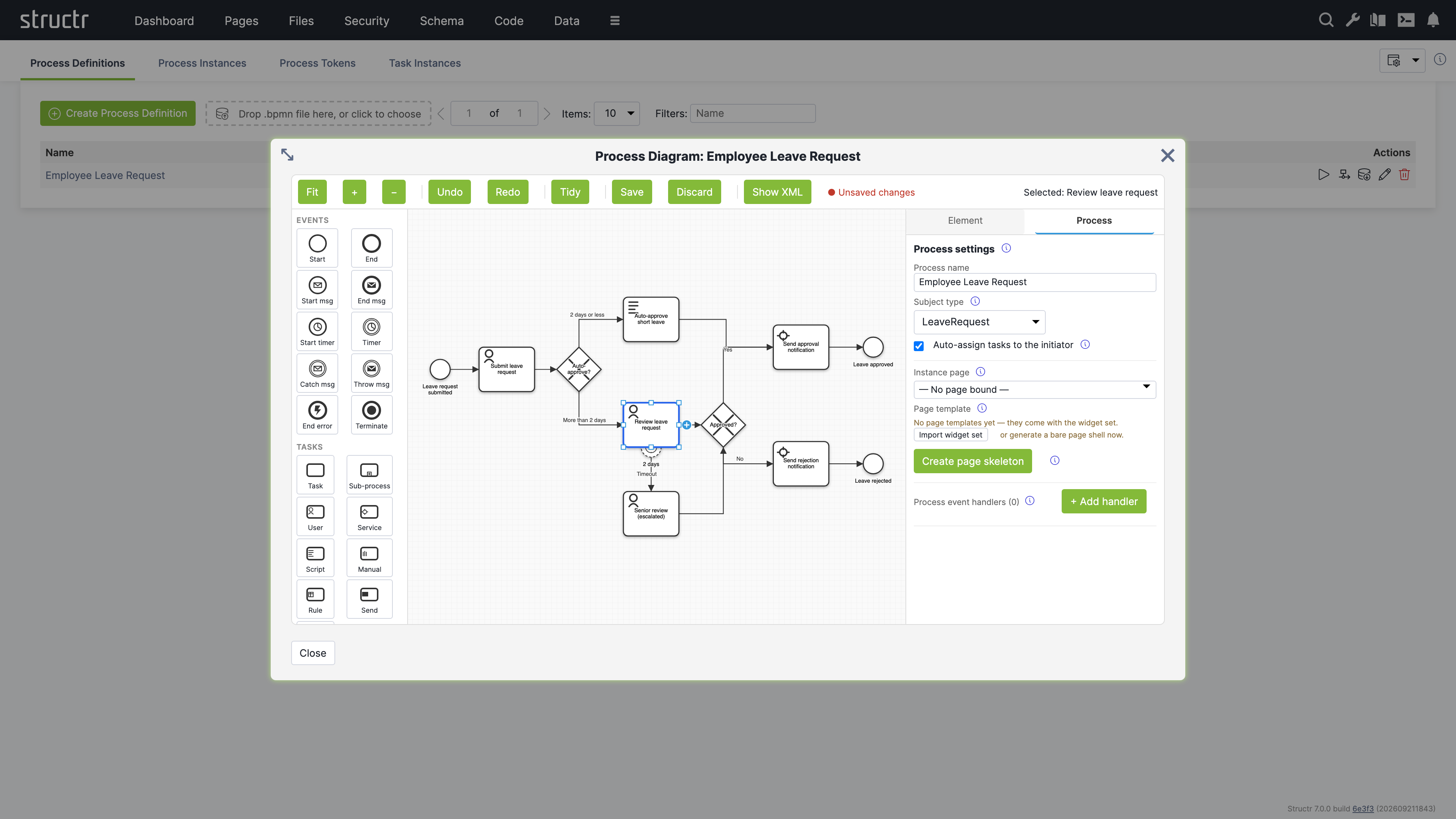
The Process tab holds the settings that apply to the whole process. They are Structr-specific and are not part of the BPMN standard, so a re-import of the same file does not restore them.
| Setting | Description |
|---|---|
| Process name | The name shown in all process pickers and in the Process Definitions table. |
| Subject type | The schema type of the single domain object this process operates on. Each instance has exactly one subject. User tasks pick which fields of this type they show through their form view, and process-bound widgets use the type to derive their fields. |
| Auto-assign tasks to the initiator | When a user task has no assignee, the engine reserves it for the user who started the instance. Off by default so that imported models keep their standard semantics. |
| Instance page | The page that renders an instance of this process. The start action of Event Action Mapping navigates to this page with the instance id as path segment. Without a bound page, the URL falls back to the slugified process name. |
| Page template | The page template widget that “Create page skeleton” builds the page from. Page templates come from the widget set, and the panel offers to import it when none is present. |
The “Create page skeleton” button generates the instance page for you. The page contains one empty div per step that needs a human, in flow order: the start event, every user task, manual tasks and message catch events. Each div carries a visibility rule bound to its step, so it renders only while that step is actionable, and a heading that reads the name of the step. Machine steps such as service tasks and gateways get no div. The new page is bound as the instance page when none is set. You then fill the sections in the Pages area, typically with the process-bound widgets of the default widget set.
The Process tab also lists the process event handlers. They work like task event handlers but react to the lifecycle of the instance with the events created, started, subjectAttached, completed, terminated, suspended and resumed.
Process Instances
The Process Instances tab lists every instance with its definition and version, its subject, the user who started it, its status and its start and end time. The filter input narrows the list by status. The possible states are running, suspended, completed, terminated and error.
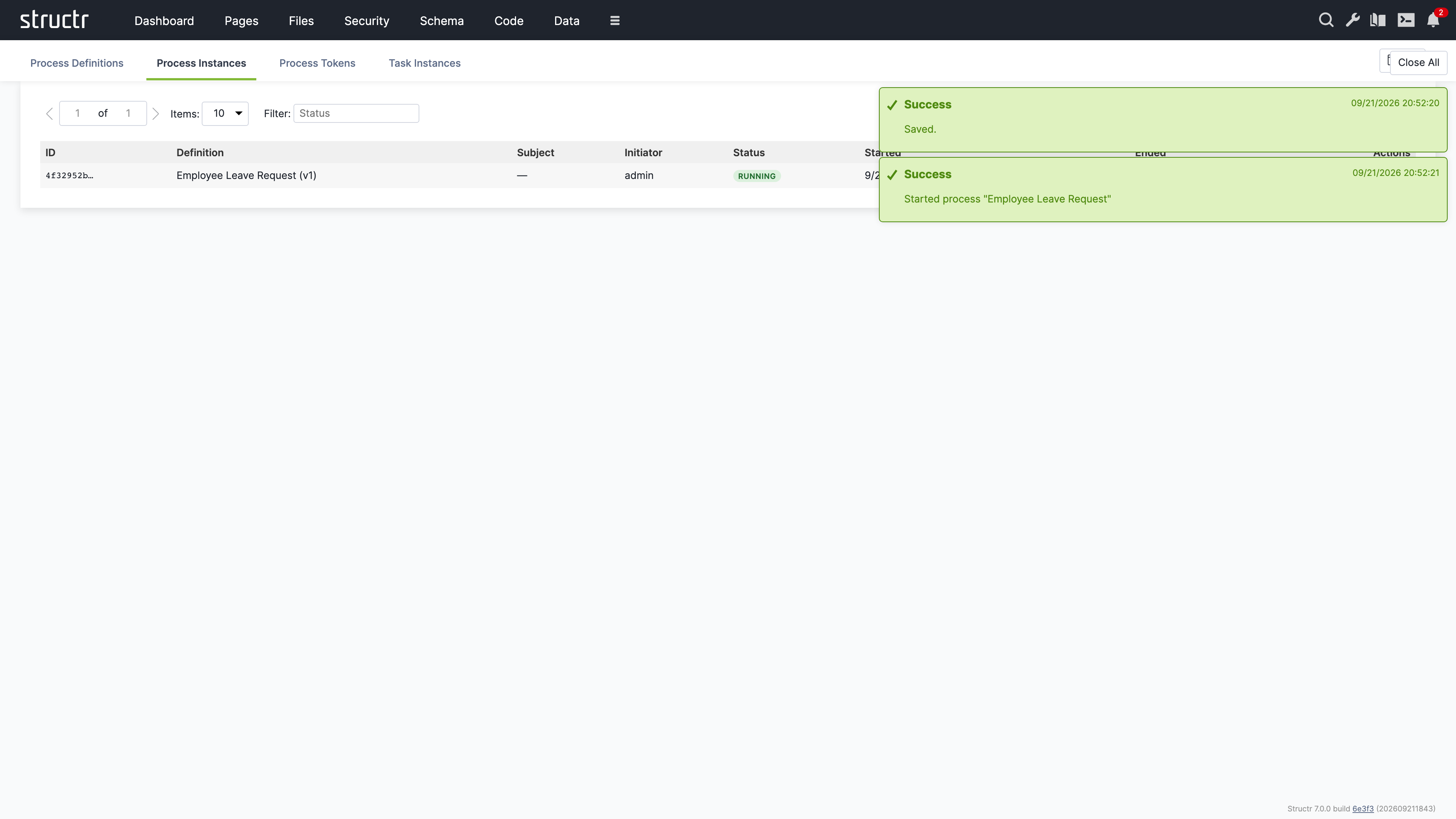
The actions pause and resume an instance, terminate it, or open its properties. Suspending stops the engine from advancing tokens while leaving them in place. Terminating ends the instance and consumes all waiting tokens. Both operations run through the engine, so process event handlers fire as they would for the same operation triggered from a page.
Process Tokens
A token marks where an instance currently is. The Process Tokens tab lists all tokens with the instance they belong to, the element they wait at, and their status. This view is mainly useful for diagnosis: a running instance with no waiting token has stalled, and a token that sits at an unexpected element points to a modelling problem. Tokens have no actions besides editing their properties and deleting them.
Task Instances
The Task Instances tab lists the tasks the engine has created for user tasks. Each row shows the task name, its process instance, the element in the model, the current assignee, the candidates, the status, and the times it was created, claimed and completed. The status filter narrows the list, and the checkbox “Show stalled only” reduces it to available tasks that every candidate has declined, which are the tasks that need an administrator.
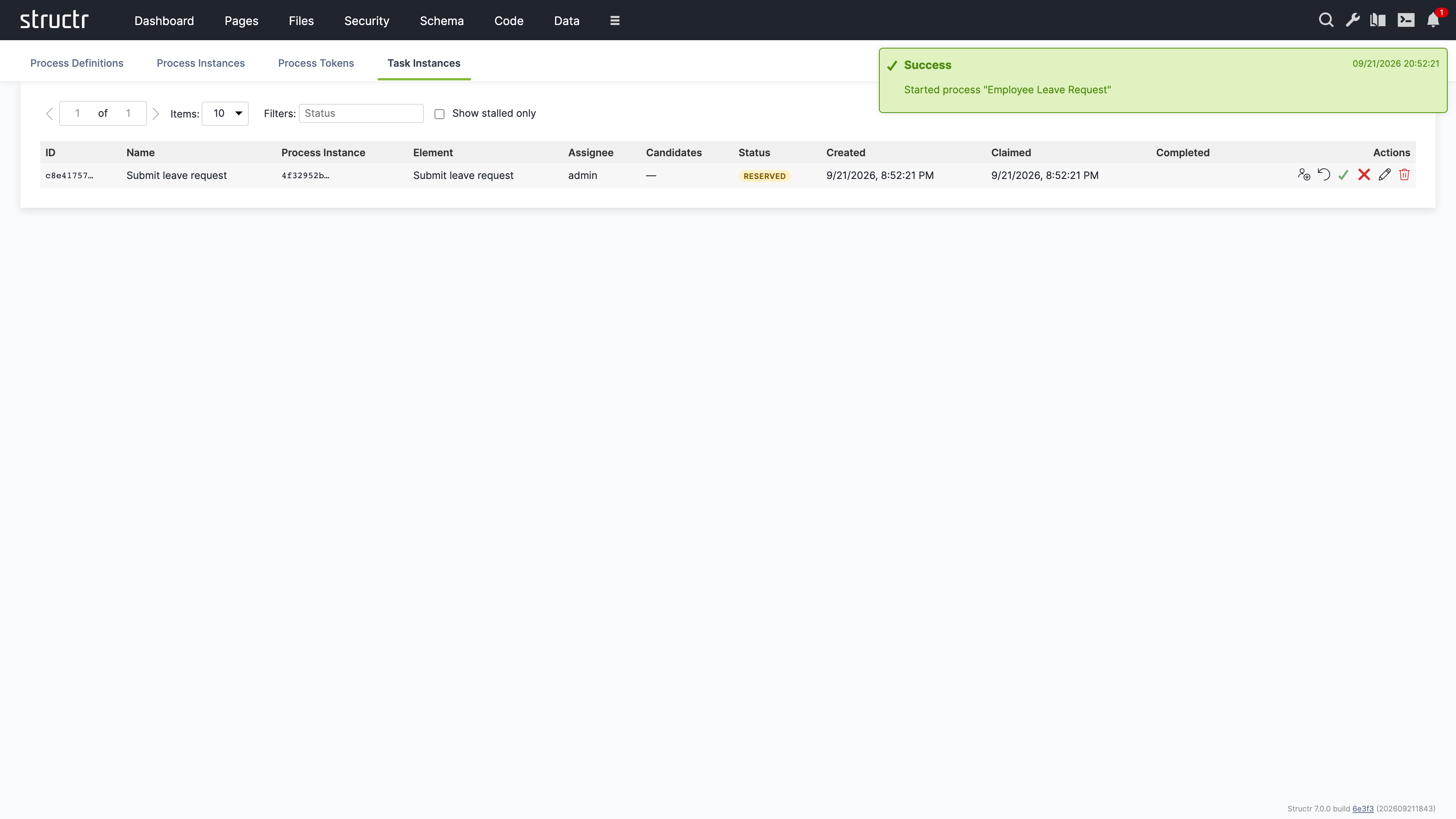
The actions cover the administrative operations of the engine. Assign opens a dialog to pick a user or group and sets the assignee directly, overriding the candidate declarations. The reset icon returns a reserved task to the available pool and re-notifies the candidates. The checkmark completes a reserved task without going through a page. The cross cancels a task, which consumes its token without advancing the instance. The participant operations claim, release, decline and delegate are performed by the users themselves through Event Action Mapping and are not part of this view.
Related Topics
- BPMN Process Control - Wiring pages to processes with Event Action Mapping and process visibility rules
- Building A BPMN Process Based App - A tutorial that builds a complete process with one user task
- Widgets & Components - Process-bound components that render the subject of an instance
- Code - Where task and process event handlers are edited